Microsoft Edge Secure Network VPN: How It Works and When to Use It
Learn what Edge Secure Network protects, how to turn it on, and when a full VPN is a better choice.
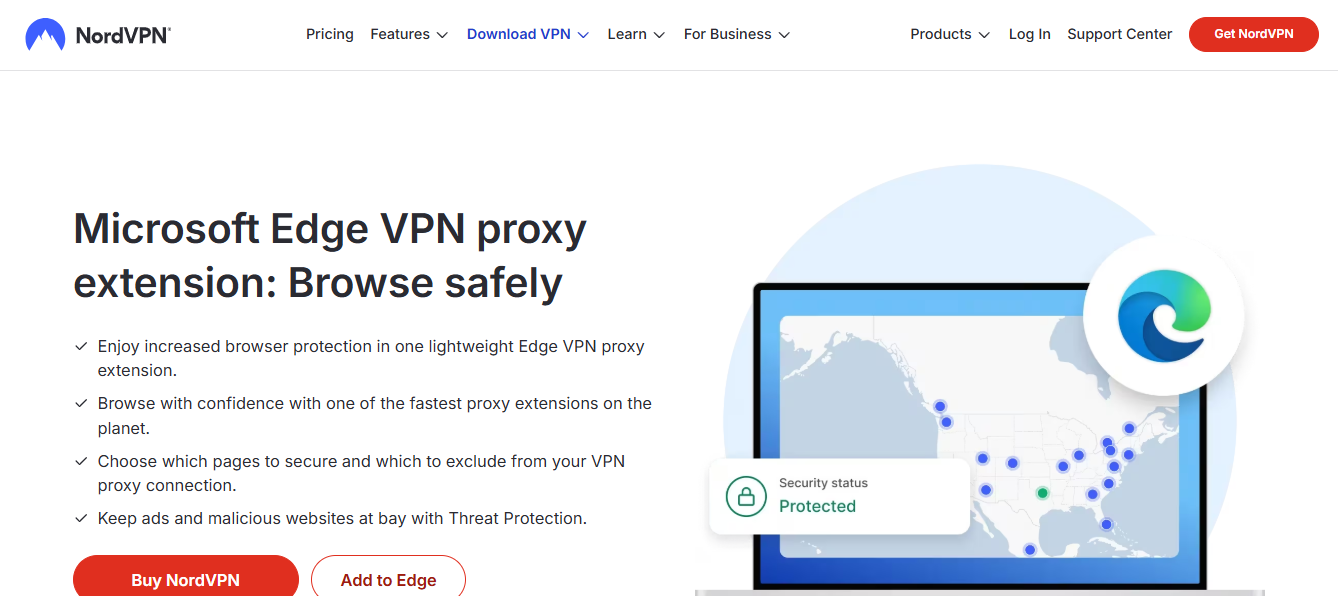
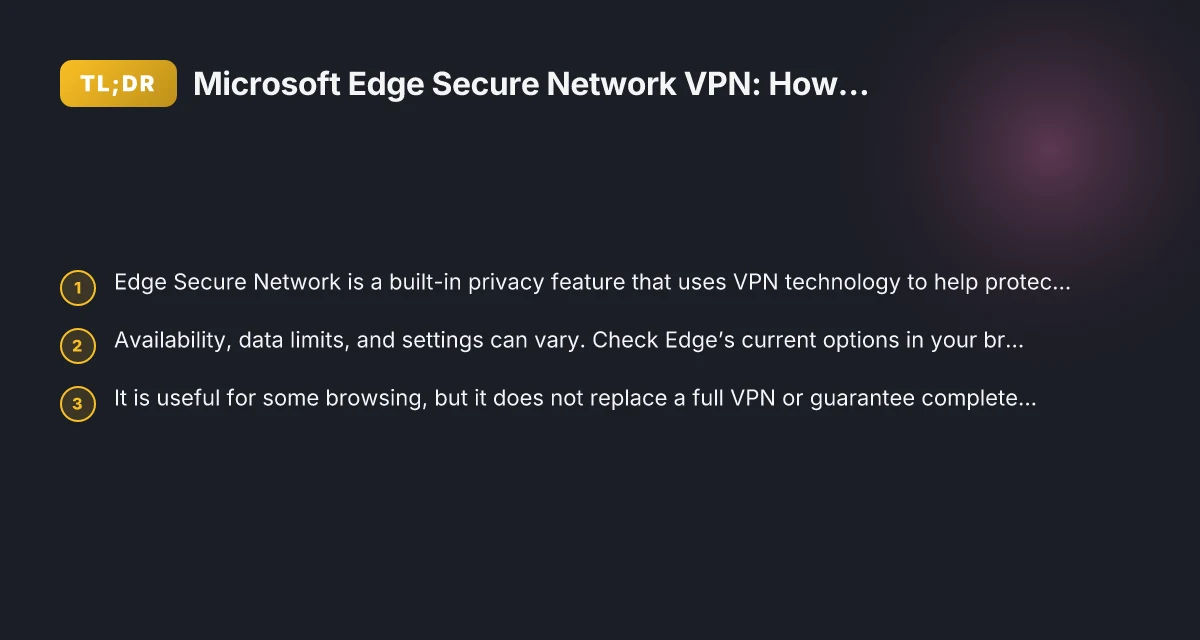
Microsoft Edge Secure Network is a built-in feature that uses VPN technology to help protect your connection while you browse. To try it, sign in to Edge with a personal Microsoft account, then look under Settings > Privacy, search, and services > Security for the Secure Network option. Its availability and limits may depend on your account, region, and version of Edge, so check the current information in your browser. It can add privacy protection, especially on untrusted networks, but it is not a complete substitute for a dedicated VPN.
Editor's pick: NordVPN — fast, secure VPN — Strong encryption, a no-logs policy and apps for every device. 30-day money-back guarantee. Get NordVPN →
**Edge Secure Network vs. a full VPN
| Comparison | Edge Secure Network | Full VPN |
|---|---|---|
| Where it works | In Microsoft Edge | Often across apps and devices |
| Connection encryption | Protects Edge traffic | Depends on VPN and settings |
| IP address masking | Masks your IP for Edge traffic | Usually masks your IP across covered traffic |
| Public Wi-Fi protection | Useful for Edge browsing | Useful for covered apps and browsing |
| Streaming and location choice | Not designed for location selection | Some services offer location selection |
| Account or app traffic outside Edge | Not covered by Edge’s browser feature | May be covered when the VPN is active |
| Best fit | Extra privacy for Edge browsing | Broader device-level VPN needs |
Compiled November 2026; check the provider's site for current details.
| VPN | Obfuscation | From / month | Plan | Free plan | Refund | Alipay | UnionPay | Crypto | Website opens in China | Trustpilot | |
|---|---|---|---|---|---|---|---|---|---|---|---|
 ZoogVPN | Turn on manually Shadow | $2.49/mo | 27 months: $59.99 | Yes | 7 days | ✓ | ✓ | ✓ | ✓ | Official site blocked; our special link opens (4.4 s) | 4.2/5 (195 reviews) |
 NordVPN | Turn on manually Obfuscated Servers / NordWhisper | $3.49/mo | 27 months: $94.23 | No | 30 days | ? | ✗ | ✓ | ✓ | ✗ Blocked | 4.2/5 (51,628 reviews) |
 ExpressVPN | ✓ On by default all servers | $3.00/mo | 28 months: $84 | No | 30 days | ✗ | ✗ | ✓ | ✗ | ✗ Blocked | 4.4/5 (29,706 reviews) |
 Surfshark | ✓ On by default Camouflage, with OpenVPN | See site | See site | No | 30 days | ✗ | ✗ | ✗ | ✓ | ✗ Blocked | 4.3/5 (31,823 reviews) |
 Proton VPN | Turn on manually Stealth, free plan too | $2.99/mo | 12 months: $35.88 | Yes | 30 days | ✗ | ✗ | ✗ | ✓ | ✗ Blocked | 2.1/5 (1,040 reviews) |
 Astrill VPN | Turn on manually StealthVPN / OpenWeb | $12.50/mo | 24 months: $300 | No | See site | ✗ | ✗ | ✗ | ✓ | ✗ Blocked | 1.3/5 (110 reviews) |
 Private Internet Access | Turn on manually Shadowsocks, OpenVPN only | $2.03/mo | 40 months: $81.2 | No | 30 days | ✗ | ✗ | ✗ | ✗ | ✗ Blocked | 4.2/5 (11,033 reviews) |
 CyberGhost | Turn on manually selected servers | $2.19/mo | 28 months: $61.32 | No | 45 days | ✗ | ✗ | ✗ | ✓ | ✗ Blocked | 4.0/5 (24,178 reviews) |
 PureVPN | Turn on manually switch to OpenVPN | $1.69/mo | 60 months: $101.55 | No | 31 days | ? | ? | ✗ | ✓ | ✗ Blocked | 4.4/5 (17,994 reviews) |
 AdGuard VPN | ✓ On by default TrustTunnel | $2.99/mo | 24 months: $71.76 | Yes | 30 days | ✓ | ✗ | ✓ | ✓ | Official site blocked; our special link opens (3.7 s) | 4.3/5 (290 reviews) |
 Mullvad | Turn on manually QUIC / Shadowsocks / LWO | $5.61/mo | €5/mo | No | 14 days | ✗ | ✗ | ✗ | ✓ | ✗ Blocked | 3.2/5 (192 reviews) |
 Windscribe | Turn on manually Stealth / WStunnel | $5.75/mo | 12 months: $69 | Yes | See site | ✗ | ✗ | ✗ | ✓ | ✗ Blocked | 4.7/5 (13,355 reviews) |
 StrongVPN | Turn on manually Scramble, OpenVPN TCP | See site | See site | No | 30 days | ✓ | ✗ | ✗ | ✗ | ✗ Blocked | 4.4/5 (2,695 reviews) |
 LightXtreme 闪连 | Not listed | $7.08/mo | 12 months: $84.99 | Yes | 30 days | ✓ | ✓ | ✓ | ✓ | ✓ Yes (3.5 s) | No page |
Prices checked 2026-11-10 on each vendor's pricing page (cheapest long plan, USD). Check the vendor's checkout for the final price.
Obfuscation checked 2026-11-14 on each vendor's site and help center: "on by default" = nothing to set; "turn on manually" = switch protocol or mode in settings; "not listed" = the vendor describes no obfuscation.
Payment methods checked 2026-11-10 on each vendor's payment pages: all 14 take cards and PayPal; ✗ = not listed, ? = the vendor's own pages disagree.
China access: whether the official website opens from mainland China networks (tests the website only, not the VPN connection). Last checked 2026-11-18 01:02 Beijing time.
Trustpilot score and review count checked 2026-11-10.
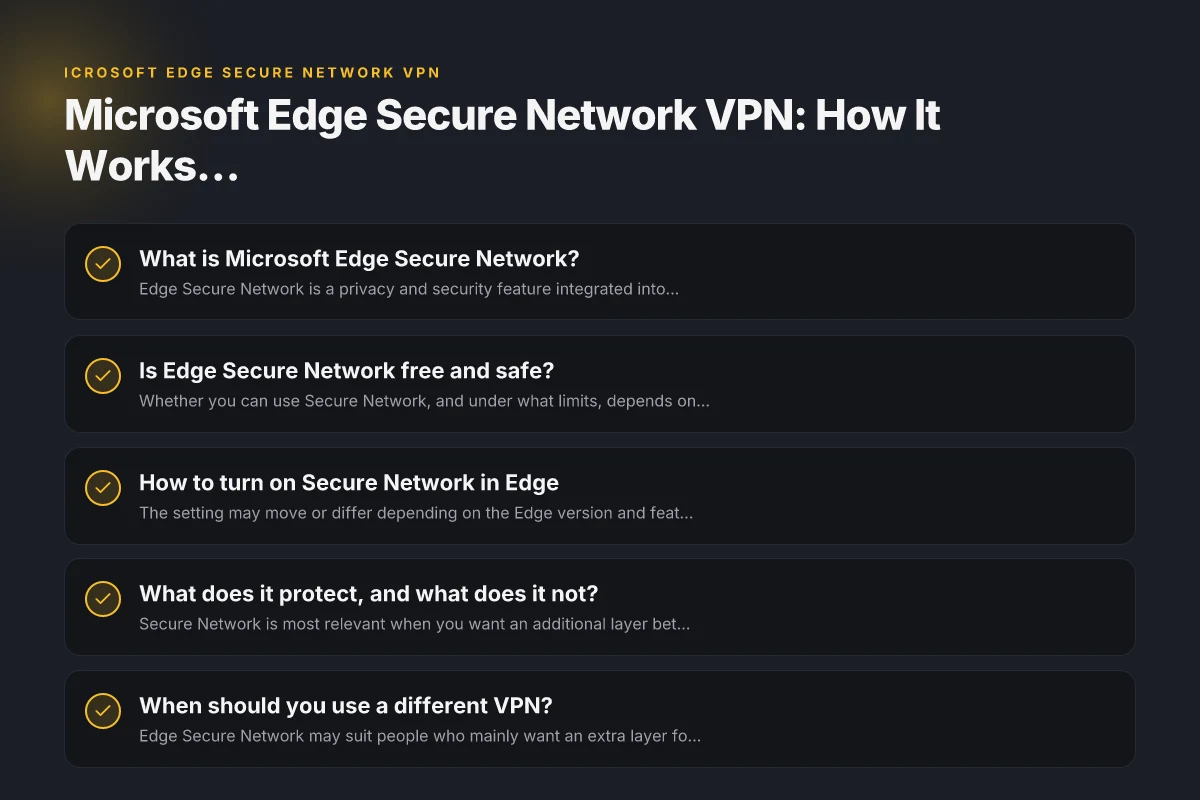
What is Microsoft Edge Secure Network?
Edge Secure Network is a privacy and security feature integrated into the Microsoft Edge browser. It routes eligible browsing traffic through a protected connection using VPN technology. This can help shield your traffic from people monitoring the same network, such as on public Wi-Fi.
The key distinction is that Secure Network is a browser feature. It is intended to protect browsing activity in Edge, not necessarily every app or service on your device. Other browsers and applications may continue to connect through your regular internet connection.
A VPN can help protect traffic in transit, but it does not make you anonymous by itself. Websites can still identify you through account sign-ins, cookies, browser settings, and other information. Secure Network should be viewed as one layer of protection rather than a complete privacy solution.
Is Edge Secure Network free and safe?
Whether you can use Secure Network, and under what limits, depends on the current terms and availability shown by Microsoft in Edge. Search results and user discussions mention a data cap, so check the feature’s information in your browser rather than assuming unlimited use. Do not rely on old instructions or third-party claims for the latest allowance.
The feature is designed to add protection to browsing connections. However, “safe” does not mean risk-free or comprehensive. A VPN shifts some trust from your internet provider or local network to the VPN service, and it cannot prevent every form of tracking or exposure. Clash for iOS: What to Know Before Choosing an App
Keep these points in mind:
- Secure Network is not the same as antivirus software or a malware blocker.
- It cannot protect information you voluntarily share with a website.
- It may not cover traffic outside Edge.
- Your account, browsing habits, and website data can still affect your privacy.
- If a connection drops or a site behaves unexpectedly, check whether Secure Network is active and review Edge’s settings.
For questions about data handling, read Microsoft’s current privacy information for the feature. Avoid treating a VPN label as a guarantee that no data is collected or that every connection is covered.
**What Edge Secure Network protects—and what it doesn’t
| Activity or risk | Protected by Secure Network? | Practical note | Consider instead |
|---|---|---|---|
| Edge browsing on public Wi-Fi | Yes | Adds protection to Edge traffic | A full VPN for other apps |
| Edge traffic on an untrusted network | Yes | Applies while the feature is on | A full VPN for device-wide coverage |
| Traffic from other browsers | No | Secure Network is an Edge feature | A VPN that covers those browsers |
| Traffic from other apps | No | Apps outside Edge aren’t covered | A device-level VPN |
| Choosing a specific country or city | Not its purpose | Don’t rely on it for location selection | A VPN with location options |
| Anonymity from websites | No | Websites may still identify you in other ways | Privacy tools and careful account use |
| Protection from scams or malware | No | A VPN is not an antivirus or scam blocker | Security software and safe browsing |
Compiled November 2026; check the provider's site for current details.
How to turn on Secure Network in Edge
The setting may move or differ depending on the Edge version and feature availability. In general, start by signing in to Edge with a personal Microsoft account, then look in the browser’s privacy and security settings. VPN Free: How to Choose a Free VPN Safely
- Open Microsoft Edge.
- Sign in with a personal Microsoft account if you are not already signed in.
- Open Settings.
- Select Privacy, search, and services.
- Find the Security section and look for Microsoft Edge Secure Network.
- Turn the feature on and review any usage information or options displayed.
You may also see a Secure Network icon or status in the browser, depending on your version and settings. If the option does not appear, check that Edge is up to date and that the feature is available for your account and region. Work or school-managed devices may have settings controlled by an administrator.
To turn it off, return to the same settings area and switch it off. If you cannot find the control, use Edge’s Settings search box and search for “Secure Network.”
What does it protect, and what does it not?
Secure Network is most relevant when you want an additional layer between your browser traffic and an untrusted network. For example, it may help reduce the exposure of browsing traffic when you use public Wi-Fi. The actual protection depends on whether the feature is available, enabled, and covering the traffic you expect it to cover.
| Situation | Edge Secure Network | Dedicated VPN app |
|---|---|---|
| Browsing in Edge | Designed to help protect eligible Edge traffic | Usually protects traffic across more of the device |
| Other apps and browsers | May not be covered | Often covered, depending on the app and settings |
| Travel or location options | Do not assume broad server-location choices | May offer more location and connection options |
| Data limits and availability | Check Edge for current terms and eligibility | Varies by provider and plan |
| Privacy expectations | Adds a layer of protection, not anonymity | Also does not guarantee anonymity |
A VPN cannot stop phishing, unsafe downloads, or every kind of tracking. Use secure website connections, keep Edge updated, avoid suspicious links, and use strong account security alongside any network protection.
When should you use a different VPN?
Edge Secure Network may suit people who mainly want an extra layer for browsing in Edge and do not need device-wide coverage. A dedicated VPN may be a better fit if you want protection for several browsers and apps, need more control over connection locations, or regularly use VPN features for work or travel. VPN Extension for Edge: How to Choose and Use One
Before choosing a service, consider:
- Which apps and devices it covers.
- Its data limits and connection options.
- Its privacy policy and data-handling practices.
- Whether it provides the features you need without interrupting your normal browsing.
Do not assume that every VPN has the same protections or privacy practices. Review the provider’s terms, and test the service with the websites and apps you actually use.
**Which option fits your situation?
| Situation | Edge Secure Network | Full VPN | No VPN needed |
|---|---|---|---|
| Browsing in Edge on public Wi-Fi | Good fit | Also an option | Less protection on an untrusted network |
| Protecting traffic from multiple apps | Not a fit | Good fit if supported | Not suited to this goal |
| Using a browser other than Edge | Not a fit | Good fit if supported | Depends on your privacy needs |
| Selecting a location for a service | Not designed for this | May fit; check provider features | Not suited to this goal |
| Wanting extra privacy for routine Edge browsing | Good fit | May be more than needed | Possible if you accept less protection |
| Needing antivirus or scam protection | Not a fit | Not a replacement | Use dedicated security tools |
Compiled November 2026; check the provider's site for current details.
Recommendation
Use Microsoft Edge Secure Network as a convenient extra layer for eligible browsing, especially when connecting through an untrusted network. Check its availability, data terms, and status in Edge before relying on it. If you need protection beyond the browser or more VPN controls, compare reputable dedicated VPN services, and remember that no VPN alone guarantees complete privacy. Cj.cj.net VPN: What the Site Is and How to Find the Right VPN Information