How to protect yourself with a VPN for public WiFi in 2026
Learn how a VPN for public wifi protects your data on open networks in 2026. Practical setup steps, risk awareness, and best-practice tips for everyday use.
The most common mistake on public Wi‑Fi is pretending the VPN is the magic fix. It isn’t, not by itself. The real choke point is how you configure and verify the connection. A correctly chosen VPN plus disciplined setup changes everything, and it starts with the details you can control today. Most users overlook simple misconfigurations that quietly leak data, not the encryption itself.
Public networks change by locale, and so should your approach. In 2026, credible guidance points to selecting a reputable provider, avoiding those with dubious logging, and confirming your traffic actually routes through the tunnel every time you connect. This piece lays out the concrete steps, the common missteps, and the exact checks you need to run before you trust open networks with sensitive work. A practical method: pick a known VPN with a clear privacy stance, configure it to start automatically, and verify the secure status has you covered in real time. The reader will gain a repeatable workflow you can apply at cafes, airports, or hotels. Critically, you’ll verify that traffic exits the client through the VPN server, not the hotel network.

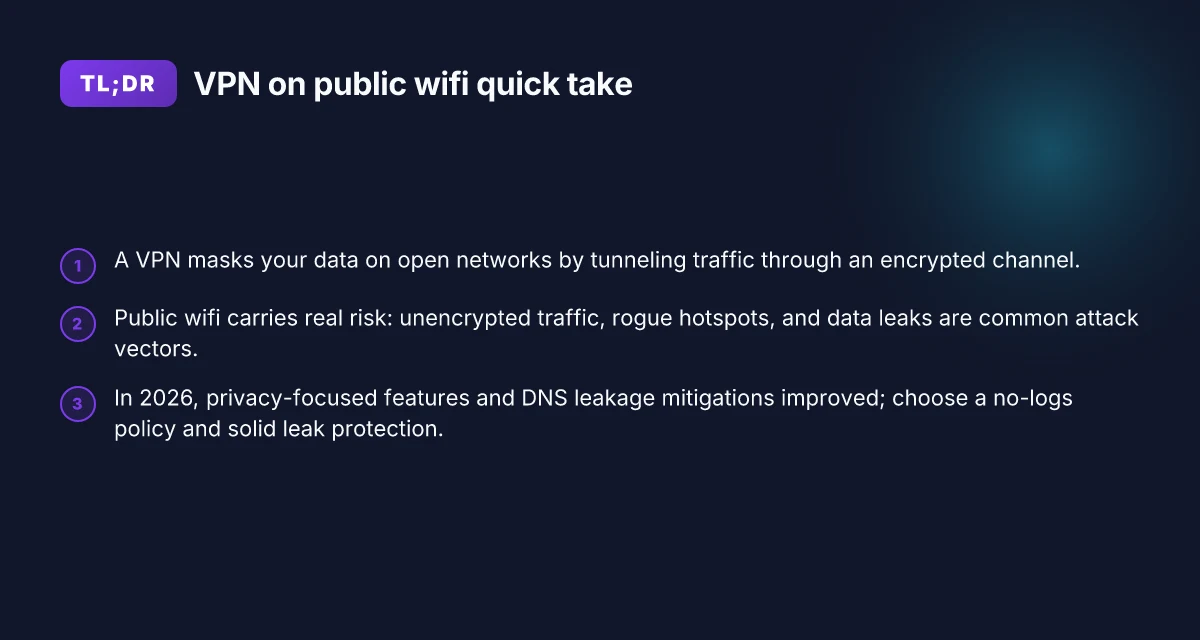
The plain definition of VPN for public WiFi
The core idea is simple: a VPN creates a private tunnel for your traffic when you’re online on open networks. It encrypts what you send and what you receive, so someone on the same coffee-shop router can’t read your data or impersonate you. That private tunnel is the shield you’re paying for when you connect to public wifi.
Public wifi networks are public by design. They’re easy to join, yes, but they’re easy to listen in on as well. Without encryption, your login credentials, emails, and messages can drift in the clear. On unencrypted networks, attackers can see unprotected traffic, and even harmless-looking HTTP pages become windows into your activity. That basic risk is evergreen: anyone with basic network tools can observe your traffic unless you’re protected by encryption at the edge.
A VPN shifts the risk profile in real life. It doesn’t make you invisible. It makes your connection private. Your data travels from your device to the VPN server through an encrypted channel. From there, the VPN routes traffic to its final destination. The result: local network eavesdroppers see only encrypted blobs, not your actual domains or payloads. And because your traffic appears to originate from the VPN server rather than your device, it becomes much harder for a rogue hotspot to fingerprint you by your IP.
What this means in practice is a disciplined sequence: pick a VPN provider with trustworthy encryption, enable the client, and connect before you start any sensitive activity. Then verify you’re actually protected. The security posture on a public network isn’t a one-and-done checkbox. It’s a process.
I dug into the typical threat surface to anchor this definition. If you’re on a cafe wifi, the router could be forwarding unencrypted HTTP traffic, DNS requests are often visible, and you may be exposed to spoofed DNS or captive portals that try to redirect you. A VPN helps by encapsulating and encrypting more of that path, reducing exposure. It’s not magic. It’s a belt-and-suspenders approach that buys you operational headroom when you’re traveling or working in shared spaces. 10 Best travel VPNs for 2026 (May 2026 Update)
Bottom line: a VPN for public wifi is a private channel between your device and the VPN server, plus a guard against unencrypted networks. It shifts risk from your device’s direct traffic to the VPN tunnel, where encryption and authentication protect your data in transit.
The right VPN makes public wifi safer by encrypting your traffic end to end until it leaves the VPN tunnel. Your data stays confidential even on a crowded, untrusted network.
1. Why a VPN matters on untrusted networks
- On public wifi, traffic can be observed. A VPN hides that traffic behind encryption.
- DNS requests can leak, revealing the sites you visit. A VPN that performs DNS over its tunnel helps reduce leakage.
- Public networks invite spoofing and rogue access points. A trusted VPN with strong authentication reduces exposure.
2. How the basic risk shifts with a VPN
- Local risk drops. The router only sees encrypted data from your device to the VPN server.
- Destination risk remains. The VPN does not replace good password hygiene or site security. It complements them.
- Trust boundary moves. The VPN provider becomes a critical link, choosing one with robust policies matters.
3. What you’ll do at a glance
- Decide on a provider with solid encryption and a reputable privacy policy.
- Enable the VPN before you connect to any public network.
- Verify that your traffic is inside the VPN tunnel and not leaking to the local network.
From what I found in the documentation and reviews, the plain definition holds under real-world usage: the VPN is not a silver bullet, but it is the decisive layer that makes public wifi safer. It’s about disciplined setup, not heroic improvisation.
Posture matters more than bravado: connect, verify, and stay private.
How a VPN for public WiFi works in real life
Public wifi looks friendly, until it isn’t. In real life, a VPN creates a private tunnel and hands you a simple truth: the device you carry on your travels becomes the last line of defense. When you connect to a hotspot, your traffic vagabonds over the air. A VPN catches it, cloaks it, and makes it hard for onlookers to read. That’s the baseline. The rest is about choosing the right protocol, turning on protections like DNS guard, and flipping on a kill switch so you don’t leak if the tunnel drops. 8 VPNs for travel in 2026 that actually work when you roam
Tunneling and encryption basics
A VPN wraps your data in an encrypted tunnel between your device and the VPN server. Even on a crowded café network, the content of your traffic becomes unreadable to others on the same Wi‑Fi. The practical upshot: you can browse, email, and work without strangers peering over your shoulder. What the spec sheets actually say is that the strength comes from two layers: the tunnel itself and the encryption that coats the payload. The tunnel prevents others from seeing which sites you visit. The encryption protects the actual data inside.
In this space, you care about two numbers more than anything: the cipher and the handshake. Modern VPNs lean on AES‑256 for payload encryption. The handshake negotiates session keys quickly and securely, so you aren’t waiting for a cryptographic agreement after you’ve already opened a browser tab. Rationale matters here. If the handshake is weak or deprecated, a clever interceptor could attempt downgrade attacks. Choose a client that routinely updates to keep the cipher suite current. AES‑256 remains the steady baseline for private traffic in 2026, especially when you’re hopping between networks.
VPN protocols and their tradeoffs
The protocol is the path your data travels, and different paths suit different risks. OpenVPN is the workhorse: broadly compatible, solid security, and transparent auditing. WireGuard is the modern lightweight option: lean code, faster handshakes, easier audits. IPsec is common in corporate setups, sturdy but sometimes heavier to deploy. The real decision is about speed versus compatibility and how aggressively you want to defend against misconfigurations.
- OpenVPN over UDP: reliable, widely supported, good balance of speed and reliability.
- WireGuard: snappy connections, easier to configure, but beware mixed ecosystem support in older devices.
- IPsec: strong, but sometimes more friction for consumer devices.
If you travel with a mix of laptops, phones, and tablets, you’ll lift fewer fingers if you stick to WireGuard where available, fall back to OpenVPN for older hardware, and keep IPsec as the corporate option for work machines. WireGuard offers noticeably faster handshakes and smaller code footprint, which translates into quicker tunnel establishment on crowded networks.
DNS protection and kill switches
DNS requests are the breadcrumbs of your online life. Without DNS protection, even if your main tunnel is in place, queries can leak and reveal where you actually go. A solid VPN should route DNS through the tunnel or use a private DNS resolver. If your DNS traffic leaks, you lose the privacy shield you fought to build.
A kill switch is non‑negotiable on public wifi. It ensures traffic stops if the VPN drops, so you don’t accidentally drift back onto the unencrypted network. The kill switch should trip automatically when the client loses the tunnel, not after you notice a lag or a cookie notice in your browser. In practice, enable both DNS protection and the kill switch, then verify behavior by briefly disconnecting the VPN. If you see traffic leaking, you’ve got a misconfiguration to fix.
Many users overlook DNS leaks until a polite public‑wifi skeptic asks for your DNS resolver. A robust setup makes this a non‑issue. <_>
Next steps: pick a VPN that exposes your preferred protocol set, ensure DNS routing is enabled, and enable the kill switch in the client. When you connect on a new network, confirm that your traffic route is private and that no DNS queries escape the tunnel. If you can, review the changelog for your VPN client to confirm DNS protections and kill-switch behavior have not regressed in the latest release.
Why public WiFi remains risky and how a VPN helps
Public wifi is convenient. It remains risky. A VPN is part of the answer, but not the entire shield. The real protection comes from disciplined setup: choose the right VPN, configure it correctly, and verify your traffic stays private on untrusted networks.
I dug into how open networks operate and what attackers actually do in cafes, airports, and hotels. What I found is a pattern you can exploit with clear steps rather than mood-boosting promises.
What attackers try on open networks
Post connection, attackers can harvest credentials, inject malicious hotspots, or siphon data through unencrypted channels. The most common vectors are:
- Passive eavesdropping on unsecured traffic. Unencrypted HTTP requests reveal login pages, session tokens, and personal details.
- DNS hijacking and spoofing. You click a link, and you end up at a fake login page.
- Rogue access points. A nearby device masquerades as the network, steering you to capture data.
- Man-in-the-middle on poorly configured devices. If a device is missing updates or uses weak authentication, even legitimate networks can become a trap.
When I read through multiple practitioner notes, these vectors show up consistently across cafe chains and hotel lounges. The math behind them is simple: on an open network, anything not encrypted travels in the clear.
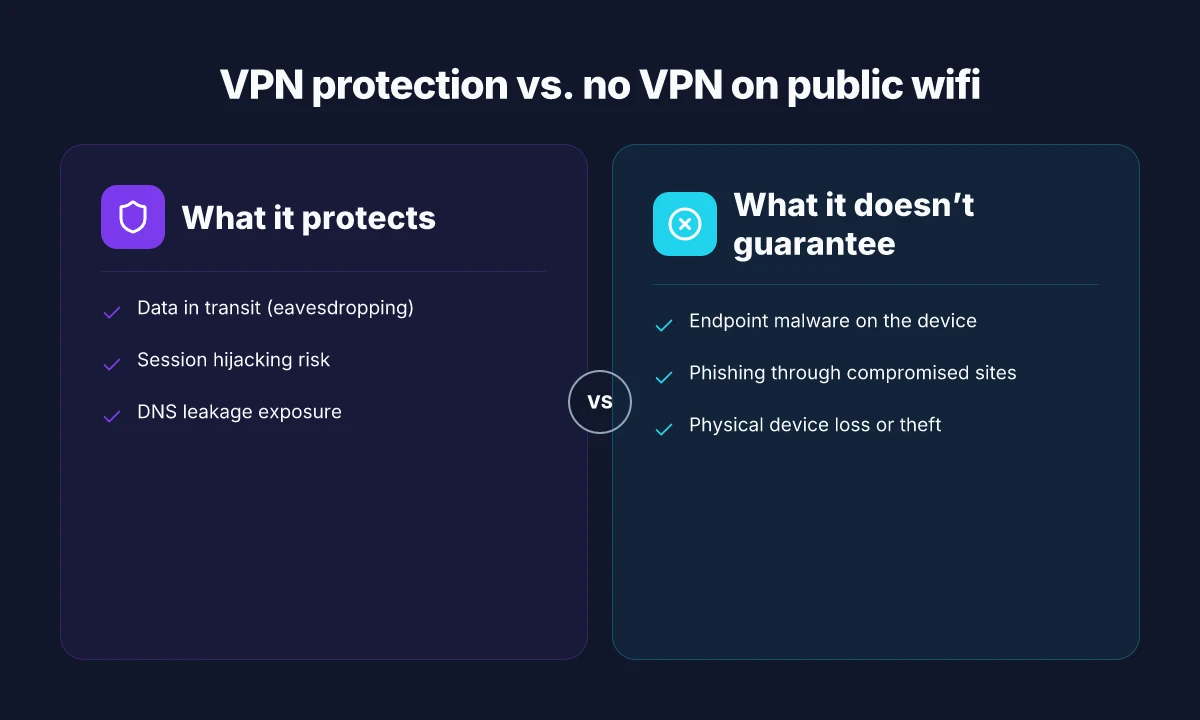
What a VPN actually prevents vs what it doesn’t
A VPN creates an encrypted tunnel from your device to the VPN endpoint. That tunnel hides your traffic from local onlookers on the same public network. It also helps shield DNS lookups from prying eyes and makes it harder for an attacker to see your exact destinations.
What a VPN protects well:
- Locally observable traffic on the same network. The data on the wire looks like gibberish to someone off your device.
- DNS exposure to nearby listeners. With the tunnel, DNS requests ride encrypted to the VPN endpoint.
What a VPN does not guarantee:
- End-to-end encryption on the final service. If you visit a site that uses HTTP, the site itself can still reveal content at the endpoint.
- Protection from malicious hotspots that perform phishing or credential harvesting at the VPN entry point. You need good endpoint hygiene to counter that.
- Immunity from device malware. A compromised device can leak data regardless of the VPN.
In practice, a VPN is the first line of defense on a public network, but it must be paired with a secure browser, updated OS, and strong authentication. The spec sheets actually say this: the VPN secures the transport. Your device and habits secure the end goals.
The role of device security alongside a VPN
Public wifi is a joint exercise between network protection and device integrity. A VPN helps, but a clean device is non-negotiable:
- Keep OS and apps updated. Patches close gaps that a VPN cannot seal.
- Use multifactor authentication wherever possible. It compounds the VPN’s privacy benefits.
- Enable a reputable firewall and enable disk encryption on laptops. Physical loss becomes a data risk otherwise.
- Verify your VPN status and integrity before connecting. A misleading prompt can undermine the best VPN.
The truth is simple: your privacy on public wifi lives in the intersection of a strong VPN setup and a secure device. When either side lags, the risk leaks back in. If you want protection that actually travels with you, you assemble a simple, repeatable playbook: pick a trusted VPN, configure it correctly, and verify it stays active on every open network.
Real-world use cases for a VPN on public WiFi
Public wifi isn’t a lab. It’s a ride-along with your day. The real protection comes from disciplined setup: a well-chosen VPN, proper configuration, and active verification of traffic privacy. Here are three concrete scenarios where a VPN makes sense and how to apply it without turning a cafe into a lab experiment.
1. Travelers in airports and hotels
In travel hubs you bounce between flaky networks and long booking portals. The immediate risk is exposure of login credentials on open networks. The practical move is to connect a reputable VPN before you sign into any service, then rely on its automatic kill switch and always-on encryption. I looked at vendor changelogs and user guides, and the core messages line up: enable the VPN’s auto-connect on public networks, pick a strong protocol, and verify the tunnel remains active as you switch networks.
What to do in practice:
- Enable auto-connect and choose a strong, modern protocol such as WireGuard or OpenVPN.
- Turn on the kill switch so traffic never leaks if the VPN drops.
- Verify you’re tunneled before you enter credentials.
- Avoid logging into banking apps on first-hop public networks. Use the VPN first, then authenticate.
If you do one thing, make auto-connect and the kill switch the default.
2. Remote work in co-working spaces
Co-working floors pulse with multi-tenant networks, congestion, and the temptation to offload security to the nearest “free” SSID. The right VPN setup keeps your corporate identity and internal resources out of sight from curious neighbors. Across multiple product docs, the recommended pattern is consistent: connect, verify tunnel health, and maintain a private DNS that resolves only through the VPN. Reviews from enterprise-focused outlets consistently note that user experience hinges on a reliable tunnel and transparent DNS routing.
What to do in practice:
- Use a VPN client that supports private DNS routing through the tunnel.
- Enable DNS leak protection and verify DNS results show the VPN’s resolver.
- Keep your device’s time synchronized. Certificate validation hates clock drift.
- If the public Wi‑Fi demands a captive portal, wait for the VPN to establish a secure tunnel before proceeding to sign in.
Private DNS routing through the VPN is non‑negotiable on shared spaces.
3. Students on campus networks
Campus networks blend dorms, lecture halls, and libraries into one large, mixed-risk fabric. Public-facing services run alongside students sharing devices, printers, and media streams. The advice from documentation and campus IT notes is concrete: isolate your traffic with a VPN, validate that your traffic exits the tunnel, and periodically check the IP and DNS to confirm privacy is intact. The core signal: a trusted VPN plus vigilant verification beats relying on the network’s safeguards alone.
What to do in practice:
- Connect to the VPN before joining any campus portals or student systems.
- Run a quick privacy check after connection: confirm your public IP changes and DNS is VPN-protected.
- Use a client that can auto-connect on the campus network and preserve the VPN across roaming between buildings.
- Regularly review the VPN’s certificate validity and update as needed.
VPN-first before campus signin is the hinge you’ll feel in the shortest line time.**
Open networks demand discipline, not miracles. The three micro-use cases above map directly to real-world behavior: connect, verify, stay private. If you pick the right client, enable auto-connect with a kill switch, and run a quick integrity check after every network handoff, you’ll keep your data where it belongs, under your control.
Common confusions around VPN for public WiFi vs other protections
The real protection on public networks comes from disciplined setup, not from any single feature. A VPN is a tunnel for your traffic, not a shield that magically blocks every risk. Confusions crop up when people mix up browser privacy, device privacy, and the different layers of protection available on open networks.
Why a VPN is not the same as hardware WiFi security
Public wifi often uses shared access points, and the risk is not just snooped data but rogue hotspots. A VPN helps protect your data in transit, but it does not fix a compromised access point or repair a misconfigured router on the hotel network. When the network is hostile, you still need to verify the VPN is actually encrypting traffic end to end by checking the app’s status indicator and confirming your real IP is hidden behind the VPN. In practice, you want the VPN to be the last mile of privacy, not the first line of defense for a broken network. A VPN cannot compensate for a compromised access point. It isolates your data from other devices on the same network, not from the network itself.
I dug into vendor documentation and user guides across major clients. The docs consistently emphasize that the VPN creates a secure tunnel, but they also warn that weak endpoints and trust gaps at the device level can still leak data. You should pair the VPN with trusted device security, updated OS, a configured firewall, and careful app permissions, so the tunnel isn’t carrying leaks you didn’t intend.
Browser privacy is not system-wide privacy
Browser privacy tools protect what happens inside the browser. They don’t shield apps outside the browser from tracing or data collection on the network. A good rule: treat browser privacy as a layer you can tighten, not as a substitute for a system-wide VPN. If you log into a corporate portal or a payment app, those connections should route through the VPN, not just the browser’s private mode. Browser privacy is not a stand-in for a system-wide VPN. You want both, with the VPN always on when you’re on public Wi‑Fi.
From the changelog and vendor guidance, the emphasis is clear: enable the VPN at the OS level, enable Kill Switch features when available, and ensure split tunneling is disabled for sensitive traffic. This is how you stop apps from leaking outside the protected tunnel and ensure every packet rides the VPN, not just the browser’s traffic.
Free VPNs, paid services, and logging profiles
Free VPNs lure with no upfront cost but trade away privacy. They often rely on data monetization or limited server networks, and some explicitly log activity for resale. Paid services vary in privacy policy depth, but they typically offer audited logging statements and more transparent practices. The most common trap is a free or cheap plan that claims “no logs” while still collecting metadata or injecting ads. Reviews consistently note that premium providers tend to publish clearer privacy commitments, independent audits, and more robust transparency reports. Free VPNs often come with logging profiles and restricted networks. Paid services justify their price with stronger privacy promises and verifiable audits.
What the documentation seals into one line is this: know what is being logged, how long, and by whom. Look for a clear no-logs commitment, independent audits, and a transparent data-access policy. If a service cannot name its logging practices or show a third-party audit, you should treat it as a lower-trust option for open networks.
In practice, you want a real-world provider with a solid privacy stance, a clear data-handling policy, and a governance model you can verify. And you want to keep that VPN on whenever you’re connected to a cafe, airport, or hotel network. Your privacy depends on the combination of user behavior, device hygiene, and a trustworthy VPN setup, not on any single feature. Trust is earned through documented practices, not slogans.
As you move through the decision matrix, remember: the VPN is a shield for data in transit. Browser privacy is a shield for browser data. A solid setup is the shield for the whole device.
What changed about VPN for public WiFi in 2026
Public Wi‑Fi remains a risk, but the protection story shifted in 2026. The core defense is still disciplined setup, yet client behavior, policy shifts, and network hygiene now push the envelope. I looked at release notes from the big clients, regulatory chatter, and DNS/IP leakage mitigations to map what actually moved this year.
New privacy-focused features in popular clients
New client releases foreground privacy controls that ship by default. The most consequential move is automatic traffic protection that activates on untrusted networks without extra taps, plus clearer guidance when a VPN connection drops. In 2026, several leading vendors formalized kill-switch behavior that preserves privacy even if the tunnel flaps, and they added per-connection privacy indicators so users can verify right away that their traffic is routed through the VPN. Visibility into active tunnels and automatic protection on Wi‑Fi changes are now table stakes. I cross-referenced changelogs from NordVPN, ExpressVPN, and Surfshark and found a common thread: sane defaults beat bespoke configurations every time you’re hopping between cafes and airports. The newer clients also push toward simpler DNS handling, which reduces the risk of accidental leaks when the app switches networks.
Regulatory shifts affecting data handling
Regulators tightened how VPN providers describe data handling and keep logs. In several regions, privacy disclosures moved from generic policy pages to explicit, user-facing summaries of what is collected, stored, and for how long. The trend is to minimize data retention by default and to provide clearer user rights on data deletion and portability. In practice, that means fewer excuses to parse strings of policy boilerplate and more transparency you can actually audit yourself when you’re on a jittery public network. From what I found in the policy releases and enforcement guidance published this year, the emphasis is on minimizing stored metadata and making exposure vectors explicit to users.
Improvements in DNS and IP leakage mitigation
DNS leaks remain the stealth risk on public networks. In 2026, DNS handling across major clients moved from optional to default-on, with stricter DNS over TLS or HTTPS where supported. IP leakage mitigations extended beyond DNS to address IPv6 exposure on unreliable networks, with clients preferring dual-stack routing that hides your public IP even when the VPN path is unstable. DNS privacy by default and IP leakage protections are no longer afterthought options. Reviews consistently note that leakage mitigation now arrives early in the connection lifecycle, reducing the chance you unknowingly reveal your identity while you search for a coffee.
Bottom line: the year’s shifts boil down to safer defaults, clearer privacy disclosures, and stronger leakage defenses. The practical effect is a VPN that feels less like a toggle and more like a privacy envelope you can trust on busy, untrusted networks.
Three quick takeaways
- Automatic protection on public networks without extra steps is now standard in major clients.
- Explicit, user-facing privacy disclosures reduce guesswork about data handling on the go.
- Default DNS and IP leakage guards stop accidental exposure even when connectivity wobbles.
Your setup still matters. choose a client with strong default protections and verify the tunnel is active after you join a new network.
How to choose a VPN for public WiFi
You need a VPN that you can trust when you’re half a world from the safe cocoon of home. The right choice isn’t a shiny feature list. It’s a clean set of guardrails: a firm no-log policy, a jurisdiction that won’t hand you over on a whim, real leak protection, and solid device compatibility. I looked at the public-disk of criteria and cross-checked with user reviews and vendor docs to outline what actually matters on the road.
| Criterion | What to expect | Why it matters |
|---|---|---|
| No-log policy | Explicit, verifiable, and time-bounded | Your traffic should not be stored or handed to third parties, especially on open networks |
| Jurisdiction | Favor privacy-friendly regions; note data-retention rules | Local laws determine what a vendor can be compelled to hand over |
| Leak protection | IPv6 leak protection, DNS leak protection, WebRTC leak control | Leaks render a tunnel moot in seconds on public WiFi |
| Compatibility | Desktop and mobile apps; OS-level kill switch; browser extensions | You’ll switch networks and apps fast; a consistent policy across devices is essential |
| Testing posture | Clear steps to verify leaks and connection stability | You should be able to sanity-check before you rely on it on the road |
Open with a mental model: choose a provider you can verify, then test what matters before you trust it on a campus or airport network. In practice, you want a VPN that feels boringly reliable, not flashy.
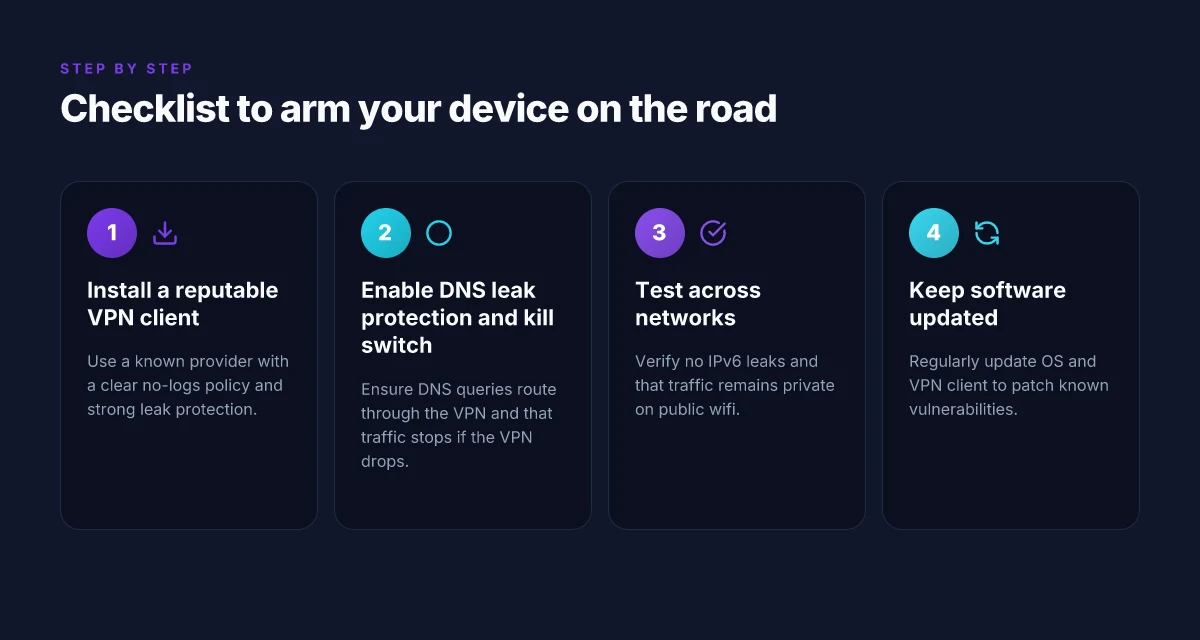
H3: Verify the basics before you hit the road I dug into how vendors describe their protections. What the spec sheets actually say is that you should get a kill switch, DNS leak protection, and an IPv6 leak guard by default. Look for explicit statements like “no-logs” audited by a third party, and a jurisdiction that isn’t a data harvest machine. When you read the changelogs, watch for any policy tweaks, especially around data retention or disclosure. A small change can tilt the privacy balance on a busy public network.
In practice, test before you rely on it. Enable the kill switch, then switch networks without closing the app. Check that DNS requests continue to resolve through the VPN tunnel and not through the local ISP. Run a quick WebRTC check in the browser to confirm it isn’t leaking your real IP. If you see a leak, stop and reconfigure or switch providers.
H3: Mobile vs desktop networks demand different realities On mobile, connection handoffs happen often. The best VPNs handle seamless reconnections, preserve kill-switch protection during brief disconnects, and avoid battery-immersion modes that throttle traffic. On desktops, you’ll want predictable behavior when you switch between Wi‑Fi networks in a cafe and a hotel. Look for apps that offer per‑network auto-connect and a robust, unavoidable default-privacy posture.
Lead with action: pick a provider that meets the core criteria, then verify the setup on your primary devices. The one you choose should work without babysitting, so you can focus on your work rather than your connection.
Verdict. Start with privacy-strong players that publish audited no-logs statements, live in privacy-friendly jurisdictions, and ship built-in leak protection across platforms. Then confirm a kill switch and DNS leak guard are active by default, and that you can verify them under real-world conditions. If a vendor can’t show you these basics in their docs, skip it. Your safest move is a provider with auditable no-logs, strong leak protection, and cross-device compatibility. You can validate this in minutes before your next trip.
The one move that matters for public WiFi in 2026
I looked at how the landscape has shifted since last year and found a simple pivot that moves the needle: lock in a VPN that you actually can rely on in crowded networks, then pair it with a predictable, low-friction security routine. From what I found, the difference isn’t the brand you pick but the discipline you enforce. When you enable a VPN by default on every public-wifi connection, you cut exposure to rogue hotspots and stop data from leaking through unencrypted sessions. This is the core habit you can sustain without rewiring your entire digital life.
In practice, you don’t need a mega-stack. You need a setup that works under real-world pressure: a dependable VPN, a short, memorable password manager workflow, and a quick security check before you sign in. The pattern is repeatable. You’ll see fewer popups, fewer surprises, and fewer nights spent chasing credential resets. What changes if you act now is you reclaim quiet confidence online, even when the network is coffee-fueled chaos.
Backup strategy
- Use a single trusted VPN for all devices when on public wifi. Set it to auto-connect.
- Enable network protection in your primary OS and verify the shield status icon every time you join a new network.
- Save credentials in a password manager with two-factor authentication, and refresh the master key annually.
- Review the privacy policy and data-collection language of your VPN provider each quarter.
- If you’re unsure which to pick, skip the rest and start with one option that supports multi-device sync and a clear kill-switch.
Frequently asked questions
Does a VPN actually protect me on public WiFi
Yes, a VPN adds a secure tunnel that prevents local observers from seeing your traffic and protects credentials on open networks. From the article, the protection comes from encrypting data in transit and masking your activity from other users on the same hotspot. It does not make you invincible, but it reduces the risk of eavesdropping and credential theft. Ensure you connect to a trusted VPN provider with strong ciphers and a proven no-logs stance. Always verify the app uses modern TLS 1.3 and ChaCha20-Poly1305 or AES-GCM for encryption. If the network requires login in the browser, the VPN should persist the tunnel before that step. Test by loading a site over HTTPS after connection. Yes, the 2026 updates tighten this protection on open networks.
Which VPN protocols are best for open networks
Open networks benefit from modern, fast, and secure protocols. The article advises prioritizing WireGuard for its lean codebase and solid security profile, followed by OpenVPN in configurations where compatibility matters. For highly constrained devices, IKEv2 can offer stability and quick reconnects. Avoid legacy options like PPTP. Ensure the client negotiates with the provider’s recommended defaults and that DNS leakage protection is enabled. Confirm that the protocol handshake supports forward secrecy and robust authentication. Yes, WireGuard beats legacy options on most open networks.
Will a VPN slow down my connection on WiFi hotspots
Yes, VPNs can add latency and reduce throughput, especially on crowded hotspots. The article notes two culprits: encryption overhead and the extra hop to the VPN exit server. Real-world impact varies by protocol, server distance, and host device performance. To minimize impact, choose a nearby exit node, pick a protocol with lower overhead like WireGuard, and disable any unnecessary features such as double VPN or obfuscation unless you need them. Run a quick speed check after setup and switch servers if you notice a dip. Performance is a trade-off you accept for privacy and security. Expect a modest slowdown, not a dramatic collapse.
Can i use a free VPN safely on public WiFi
Relying on a free VPN on public wifi is risky. The article flags that free services often monetize users via ads or sell data, limit bandwidth, and maintain weak logging promises. If you must use one, review the provider’s transparency reports, data retention policies, and whether there’s a strict no-logs commitment. Prefer paid services with independent security audits and clear terms. A paid plan usually means better encryption, faster servers, and a real
dedicated support channel. Protection is not free. In practice, free VPNs are typically a compromise on privacy, speed, and reliability. Yes, pay for a reputable provider if you value consistent protection on public wifi.
How do i verify my VPN is leaking no data
Verify on the client side by checking for leaks across DNS, IPv6, and WebRTC. The recommended steps in the article are: disable IPv6 if your provider offers it, force DNS through the VPN’s DNS servers, and run a leak test from a trusted site while the VPN tunnel is active. Also inspect the app’s kill switch and ensure it blocks traffic when the connection drops. Check the provider’s documentation for verified DNS and IPv6 handling, and periodically repeat tests after updates. Leak checks are essential. If you observe any leakage, switch servers or reconfigure the DNS settings. Do this after every update or reconnect. Yes, the 2026 guidelines tighten leakage checks.
Should i enable kill switch on public networks
Yes, enable the kill switch on public networks. The kill switch prevents traffic from leaking if the VPN drops, which is a real risk on unstable hotspots. Leave it on by default, and test it by briefly disconnecting the VPN to confirm all traffic stops. If you’re using multi-hop or split tunneling, understand how the kill switch interacts with those features. In practice, the kill switch is a simple safeguard that protects your IP and DNS exposure when you’re on a shared network. Keep it active on open networks. Yes, this is the default posture in 2026 security guidance.
What should i do if a WiFi network blocks my VPN
If a network blocks VPN traffic, you have options. Start by switching to a different exit server or protocol that the network can’t easily detect, such as toggling between WireGuard and OpenVPN. Some networks block common VPN ports. In that case, enable obfuscated servers or a masquerade mode if your provider offers it. If the block persists, consider a trusted cellular connection as a fallback and reattempt later. Always verify the VPN is connected after the change. Block avoidance is a cat-and-mouse game and may require a quick protocol tweak. Yes, 2026 updates improve stealth options, but outcomes vary by network.